Integration Documentation
Prerequisites
This section is critically important as it determines Bluetooth availability. Without Bluetooth permissions, the Yasee SDK cannot be used!!!
!! If no examples are available, consult the Complete API Documentation
To integrate the Yasee SDK, the following conditions must be met:
- Your Android device must run Pie (Android 9) or higher. Check the version using:
public class DeviceInfo {
    public static void logDeviceInfo() {
        Log.d("DeviceInfo", "Brand: " + Build.BRAND);
        Log.d("DeviceInfo", "Device: " + Build.DEVICE);
        Log.d("DeviceInfo", "Model: " + Build.MODEL);
        Log.d("DeviceInfo", "ID: " + Build.ID);
        Log.d("DeviceInfo", "Manufacturer: " + Build.MANUFACTURER);
        Log.d("DeviceInfo", "Product: " + Build.PRODUCT);
        Log.d("DeviceInfo", "SDK: " + Build.VERSION.SDK_INT);
        Log.d("DeviceInfo", "Release: " + Build.VERSION.RELEASE);
        Log.d("DeviceInfo", "Incremental: " + Build.VERSION.INCREMENTAL);
    }
}
2. Declare these essential permissions in your manifest. For issues, see Android Official Documentation:
```xml
<uses-permission
  android:name="android.permission.BLUETOOTH"
  android:maxSdkVersion="30"/>
<uses-permission
  android:name="android.permission.BLUETOOTH_ADMIN"
  android:maxSdkVersion="30"/>
<uses-permission
  android:name="android.permission.ACCESS_COARSE_LOCATION"
  android:maxSdkVersion="30"/>
<uses-permission
   android:name="android.permission.ACCESS_FINE_LOCATION"
   android:maxSdkVersion="30"/>
<uses-permission
  android:usesPermissionFlags="neverForLocation"
  android:name="android.permission.BLUETOOTH_SCAN"/>
<uses-permission
  android:name="android.permission.BLUETOOTH_ADVERTISE" />
<uses-permission
  android:name="android.permission.BLUETOOTH_CONNECT" />
<uses-feature
  android:name="android.hardware.bluetooth_le"
  android:required="true"/>
After declaring the permissions, you MUST dynamically request them in your app. Below is sample code for requesting permissions:
    private boolean checkBLEConnectionPermission() {
        boolean isGranted = false;
        if (Build.VERSION.SDK_INT >= Build.VERSION_CODES.S) {
            if (ActivityCompat.checkSelfPermission(this, Manifest.permission.BLUETOOTH_CONNECT) == PackageManager.PERMISSION_GRANTED
                    && ActivityCompat.checkSelfPermission(this, Manifest.permission.BLUETOOTH_SCAN) == PackageManager.PERMISSION_GRANTED) {
                isGranted = true;
            }
        } else if (Build.VERSION.SDK_INT >= Build.VERSION_CODES.M) {
            if (ActivityCompat.checkSelfPermission(this, Manifest.permission.ACCESS_FINE_LOCATION) == PackageManager.PERMISSION_GRANTED
                    && ActivityCompat.checkSelfPermission(this, Manifest.permission.ACCESS_COARSE_LOCATION) == PackageManager.PERMISSION_GRANTED) {
                isGranted = true;
            }
        } else {
            isGranted = true;
        }
        return isGranted;
    }
-
Yasee SDK Initialization Required
After completing steps 1 and 2 without omissions, proceed to import and initialize the Yasee SDK.
In Android projects, you can import AAR (Android Archive) packages through the following methods: -
Using Gradle to Import AAR Packages
-
Local AAR Package
If you have a local AAR file, place it in the project’slibsdirectory and configure it in thebuild.gradlefile.- Place the AAR package in the
libsdirectory
Put the AAR file (e.g.,mylibrary.aar) in thelibsfolder of your module (typically theappmodule). - Configure in the
build.gradlefile
Add the following code to your module’sbuild.gradlefile:
- Place the AAR package in the
repositories {
    flatDir {
        dirs 'libs'
    }
}

dependencies {
    implementation(name: 'mylibrary', ext: 'aar')
}
- Remote AAR package
If your AAR package is hosted in a remote repository, you can import it by adding the repository address and dependencies in the build.gradle file.
- Add the remote repository address
  repositories {
      maven {
          url 'https://your.remote.repository/url'
      }
  }

  dependencies {
      implementation 'com.example:yourlibrary:1.0.0@aar'
  }
There are two main ways to import AAR packages: local import and remote import. Choose the method that suits your project needs and configure it accordingly in the build.gradle file. After completing the configuration, sync the project, and Android Studio will automatically import and parse the contents of the AAR package.
- Need to refer to full document in the absence of examples
Outline
Next, we will divide it into the following steps to guide you to integrate and use the Yasee official SDK.
- Preparation
- Declare permissions
- Request permissions at runtime
- Initialize Yasee SDK
- Bluetooth configuration information (
BleConfig) - Android-related context information (
Yasee) - Personnel configuration information (
User) - Data notification related
- Device connection notification
- Device sending and receiving information notification
- Device binding change notification
- Bluetooth related operations
- Search Yasee devices
- Connect Yasee devices
- Get device supported detection items
- Get detection item supported instructions
- Send and receive bidirectional instructions with peripherals
Official start
Exception handling & Parameter situation
For an SDK, 👉Complete API documentation👈 is essential;
It is important in handling exceptions and understanding parameters.
Therefore, the SDK will have visual parameter prompts during use, such as:
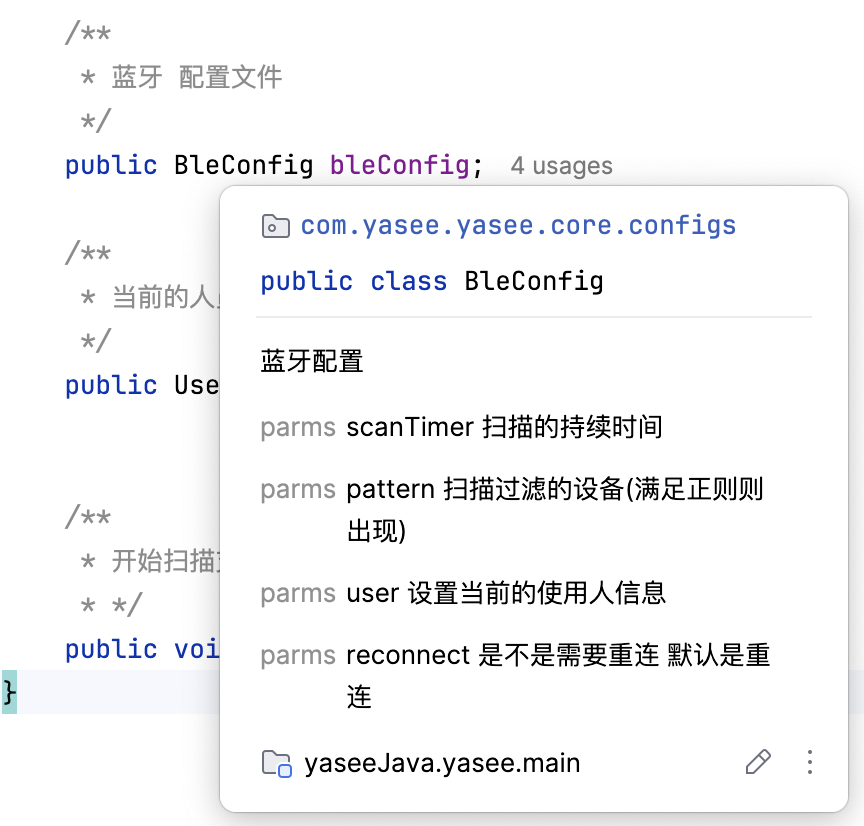
When obtaining data objects and model objects, conventional exception capture needs to be done:
// Null value judgment
if (value == null) return;

// try exception capture
try {
// There may be a crash under probability
} catch (ArithmeticException err) {
// Failed logic processing
}
Initialize Yasee SDK
The initialization operation is a must-do operation. The first step of integrating Yasee SDK is the following steps.
/// Set the context used by the entire SDK
Yasee.getSingle().context = getApplicationContext();

/// Set the time for automatic search pause (seconds)
/// BleConfig(Integer scanTimer)
Yasee.getSingle().bleConfig = new BleConfig(5);

/// Set personnel information
/// Set the current user,
/// Mainly for personnel information settings on lung function and body fat
/// User(Integer sex(1-male, 2-female), Integer age, Integer smoking(1-smoking, 0-not smoking), Integer height(cm), Integer weight(kg))
Yasee.getSingle().currentUser = new User(1,20,0,178,75);
For the model in the example, if there is any misunderstanding, please refer to the detailed comments:
Set the current personnel information, the main function is to set the personnel information in lung function and body fat! If there is no measurement of these two detection items, it can be ignored
Notification related content
All notifications and data interactions related to Yasee SDK are handled by Notify, including but not limited to:
- Device binding, unbinding and searching (
NotifyType.(searchDevices|bindDevices)) - Device connection and disconnection (
NotifyType.deviceLink) - Device communication data (
NotifyType.deviceData) - Device historical data (
NotifyType.testHistory)
First, we need to understand the type of notification. Only by understanding the type of notification can we better monitor various information notifications from the SDK:
/**
* Information type
* /// Notification type
* /// Device Bluetooth status
* case bleState
* /// Device search list
* case searchDevices
* /// Device binding list
* case bindDevices
* /// Device connection status
* case deviceLink
* /// Device transmission data
* case deviceData
* /// Device history data
* case testHistory
*/
public enum NotifyType {

/*
* Device Bluetooth status
* */
bleState,

/**
* Device search list
*/
searchDevices,

/**
* Device binding list
*/
bindDevices,

/**
* Device connection change
*/
deviceLink,

/**
* Device data content Notify
*/
deviceData // Device data content Notify

/**
* Device history data content Notify
*/
testHistory // Device data content Notify
}
You can use the type of message notification to distinguish what the data type is, and what type of data is used to receive the data type Data type, mainly including:
-
NotifyContent.BleLink -
Connection status
-
Device being operated
-
NotifyContent.BleNotifyData -
Object for data parsing
-
Device being operated
-
Original data frame for interaction
-
NotifyContent.BleSearch(not used yet)
For the model in the example, if there is any ambiguity in understanding, please refer to the detailed comments:
- For details, please click NotifyContent
// Take receiving data as an example. First create a listening receiving interface:

NotifyInterface _ni = new NotifyInterface() {
@Override
public NotifyType getType() {
// Data type you want to receive (set according to your needs)
return NotifyType.deviceData;
}

@Override
public void message(NotifyResp data) {
NotifyResp.BleNotifyData data = (NotifyResp.BleNotifyData) data.data;
HashMap _m = (HashMap) data.data;
String text = String.format("%s\n start============\n Original: %s\n Instruction type: %s \n Instruction visualization data: %s\nend================\n", binding.sendData.getText(),Arrays.toString(data.raw),data.step.name(), _m==null ? "" : _m.toString());
Logs.print(text);
new Handler(Looper.getMainLooper()).post(new Runnable() {
@Override
public void run() {
// Update operation
}
});
}
};
Device control related operations
Bluetooth related steps are relatively fixed, basically including search, connection, and sending information
// Search device
Yasee.getSingle().scan();

// Connect device
(BleDevice) device.connect();

// Connect a location device through mac address and device name
// Mainly used when the device has cached device information locally, such as reconnection, cache pickup, etc.
// BleDevice(String mac, AdvertisementData Avdadata)
BleDevice device = new BleDevice("MAC",AdvertisementData);
// Here you can use null value judgment to interrupt exceptions
if (device == null) throw new IllegalArgumentException("Failed to obtain device");
device.connect();

// Disconnect device
(BleDevice) device.disconnect();

// Get device List of supported check items
List<Check> checks = Products.supportChecks((BleDevice) device);

// Get the commands supported by the check items
List<Cmd> cmds = checks.get(0).getCmds();

// Send control commands (measure, stop, get code, etc.)
(BleDevice) device.send(ccs.get(0).handwareCode,cs.get(0).id,null);

// Send and receive notifications using Notify
For the models in the examples, if you have any misunderstandings, please refer to the detailed comments:
- For details, please click BleDevice
- For details, please click Check
- For details, please click Products
Set the default binding list
Yasee SDK supports initializing the binding list and performing automatic connection operations based on the initialized device list; First, we need to get a List<BleDecive> object;
The automatic connection function depends on the settings of the initialized device and is controlled by the reconnect field in BleConfig. If you need to set automatic connection, you need to configure this property. Automatic connection is supported by default!!
The following is the device initialization:
/// Get List<BleDevice> array
List<BleDevice> alls = Devices.getSingle().getDevices()

/// Get device management object
Devices single = Devices.getSingle()

/// Set the default device for initialization. This operation allows the device to enter automatic connection (assuming automatic connection is configured)
single.initDevices(List<BleDevice>);
For the models in the example, if there is any ambiguity in understanding, please refer to the detailed comments:
- For details, please click Devices
Obfuscation rules
-keep class com.google.gson.** { *; }
-keep class com.yasee.gson.** { *; }
-keepclassmembers class * { @com.google.gson.annotations.SerializedName <fields>; }
-keep class com.yasee.yasee.Yasee { public *; }
-keep class com.yasee.yasee.Notify { public *; }
-keep class com.yasee.yasee.core.interfaces.NotifyInterface { public *; }
-keep class com.yasee.yasee.core.models.** { public *; }
-keep class com.yasee.yasee.core.configs.** { public *; }
-keep class com.yasee.yasee.core.enums.** { public *; }
-keep class com.yasee.yasee.core.receivers.** { public *; }
-keep class com.yasee.yasee.core.tools.ByteTool { public *; }
-keep class com.yasee.yasee.core.tools.BleDeviceTypeAdapter { public *; }
-keep class com.yasee.yasee.core.tools.Products { public *; }
-keep class com.yasee.yasee.core.tools.YLocalBroadcast { public *; }
-keep class com.yasee.yasee.core.abstracts.AbstractsSerialActivity { public *; }
-keep class com.yasee.yasee.core.abstracts.Device { public *; }
-keep class com.yasee.yasee.core.abstracts.Platforms { public *; }
-keep class com.yasee.yasee.protocols.ble.BleDevice { public *; }
-keep class com.yasee.yasee.Devices { public *; }
-keep class com.yasee.yasee.protocols.serial.SerialDevice { public *; }
-keep class com.yasee.yasee.protocols.wifi.WifiDevice { public *; }
-keep class com.yasee.yasee.platforms.** { <init>(); }
-keepclassmembers class com.yasee.yasee.platforms.** { public <init>(); }

-keep class com.yyh.sdk.ecg.ui.widget.**{*;}
-keep class com.yyh.sdk.ecg.biz.**{*;}
-keep class com.yyh.sdk.ecg.bean.**{*;}
-keep class com.yyh.sdk.ecg.constant.**{*;}
-keep class com.yyh.sdk.ecg.ble.*

-keep class cn.icomon.icdevicemanager.ICDeviceManager { *; }
-keep class cn.icomon.icdevicemanager.ICBluetoothSystem { *; }
-keep public interface cn.icomon.icdevicemanager.ICBluetoothSystem$ICBluetoothDelegate { *; }
-keep public class cn.icomon.icdevicemanager.ICBluetoothSystem$ICOPBleCharacteristic { *; }
-keep public enum cn.icomon.icdevicemanager.ICBluetoothSystem$ICOPBleWriteDataType { *; }
-keep class cn.icomon.icdevicemanager.manager.setting.ICSettingManagerImpl { *; }
-keep class cn.icomon.icdevicemanager.manager.algorithms.ICBodyFatAlgorithmsImpl { *; }
-keep class cn.icomon.icdevicemanager.ICDeviceManagerDelegate { *; }
-keep class cn.icomon.icdevicemanager.model.** { *; }
-keep class cn.icomon.icdevicemanager.ICDeviceManagerSettingManager { *; }
-keep public interface cn.icomon.icdevicemanager.ICDeviceManagerSettingManager$ICSettingCallback { *; }
-keep class com.icomon.icbodyfatalgorithms.** { *; }
-keep class cn.icomon.icbleprotocol.** { *; }
-keep class cn.icomon.icdevicemanager.ICBodyFatAlgorithmsManager { *; }
-keep class cn.icomon.icdevicemanager.ICBluetoothSystem.** { *; }
-keep class cn.icomon.icdevicemanager.callback.** { *; }