Yasee Debug Tool User Guide (Apk)
Glossary
In the following content, frequently used terms are uniformly defined as:
- Host Device Standalone devices
- D-series devices
- E-series devices (ecosystem products)
- M-series devices
- Peripheral Device Devices requiring host support
- T-series devices
- App Official Yasee App (BaiHeYi)
Overview of Features
Bluetooth
- Scan & connect to Yasee-supported devices (self-developed/partner products)
- View supported test items & interactive commands for each product
- Monitor communication between App and host device
- Raw communication data (hex)
- Visualized data
- Process stage information
- Detailed error messages
- Test-specific details
- etc.
Serial Port
- View supported test items & interactive commands for each product
- Monitor communication between App and host device
- Raw communication data (hex)
- Visualized data
- Process stage information
- Detailed error messages
- Test-specific details
- etc.
WI-FI (Not currently supported)
Preparations
warning
! The debug tool lacks the robustness of the full App. Ensure the following are active before use: !
- Enable Bluetooth permissions
- Turn on Bluetooth
- Enable location permissions (required on some devices)
- Enable file permissions (required on some devices)
Feature Demonstration
BluetoothDisplay Instructions
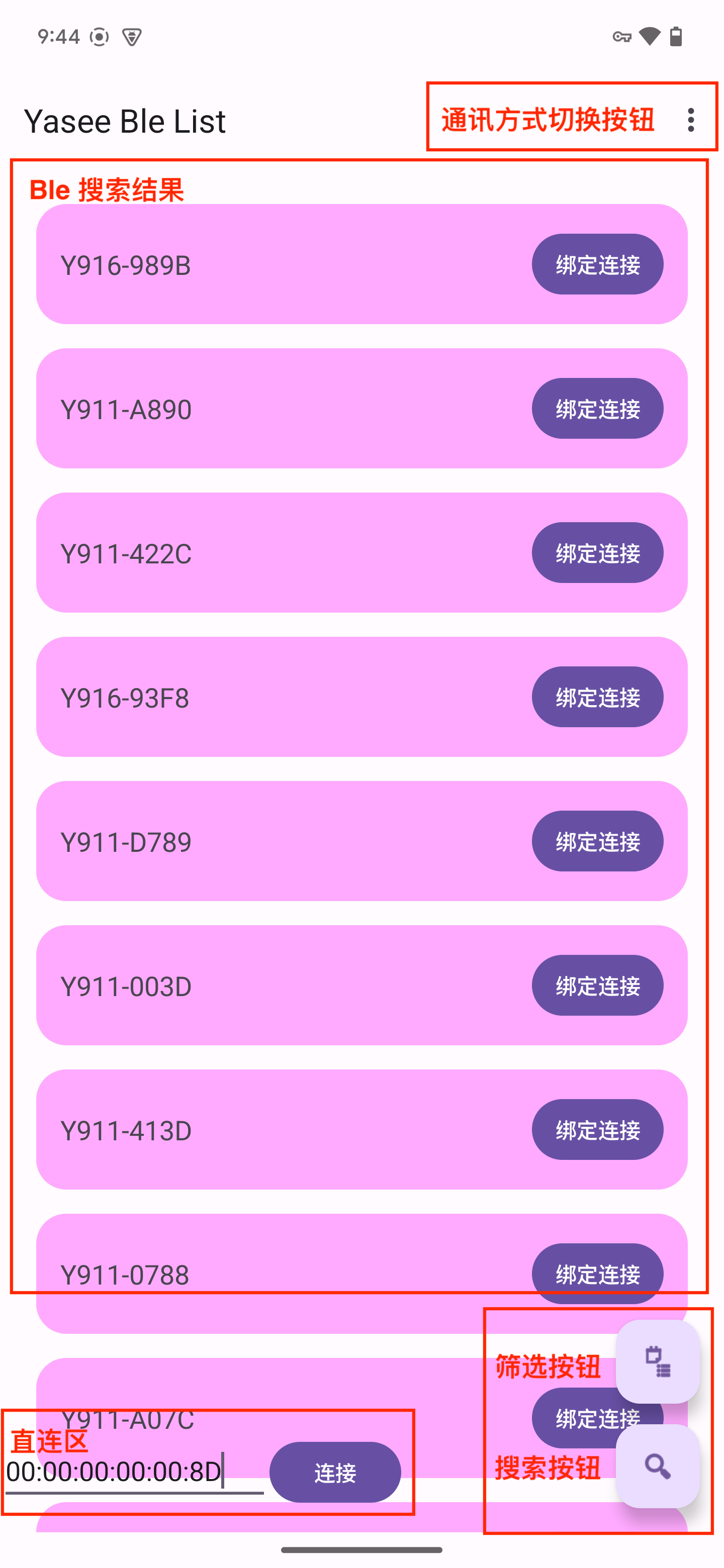
1. Communication mode toggle - Switch between communication modes
2. Ble scan results - Displays Bluetooth search results; tap 'Bind & Connect' to pair
3. Direct connect area - Connect devices via MAC address
4. Filter button - Filter devices by manufacturer
5. Search button - Scan all Yasee-supported devices
Connected Device Page & Test Items & Interactive Commands
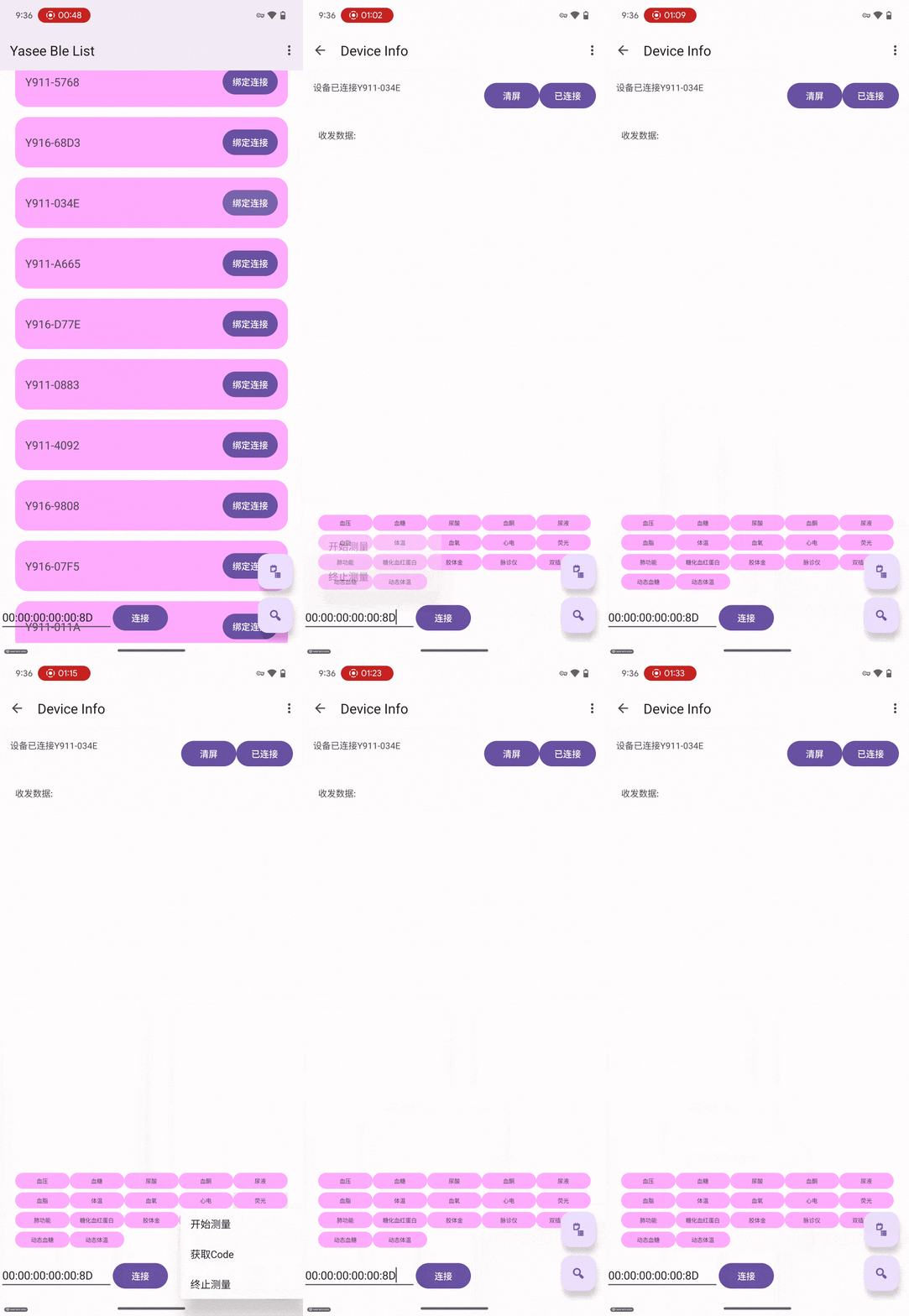
1. Tap device to connect; enter device details page upon success
2. Bottom section shows supported test items; tap to view interactive commands
3. Tap test item to see its interactive command list
4. Tap interactive command to view communication data
5. Communication data helps troubleshoot issues and analyze processes
Serial Port
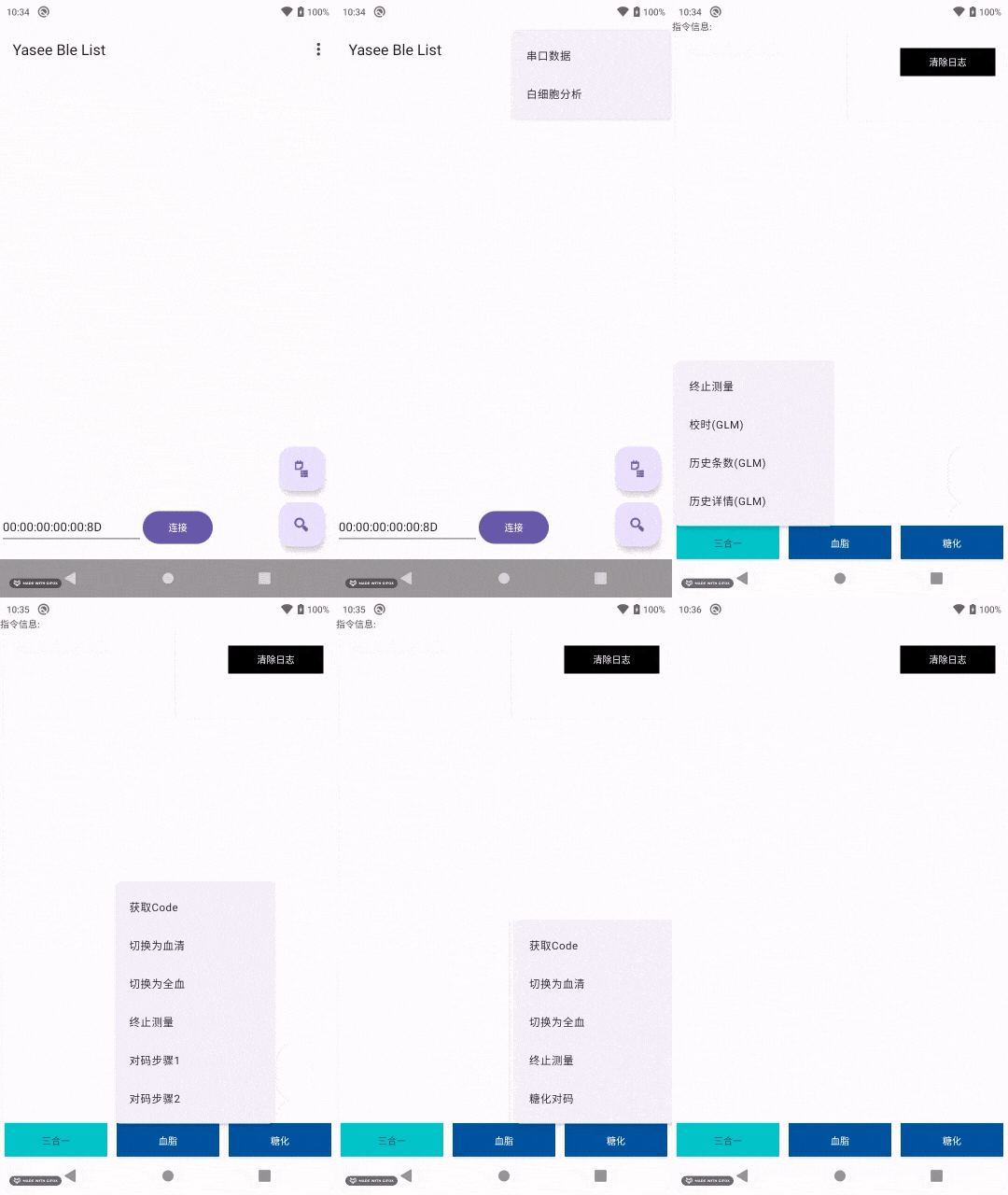
Currently only supports M10; test items include blood glucose, uric acid, ketone, etc.
1. Tap serial port mode button - Enter serial port details page
2. Bottom section shows supported test items; tap to view interactive commands
3. Tap test item to see its interactive command list
4. Tap interactive command to view communication data
5. Communication data helps troubleshoot issues and analyze processes
General Features
Viewing Communication Data
1. Communication data helps troubleshoot issues and analyze processes
2. Each complete command includes start and end flags
3. Raw frame data (hex) - For hardware/embedded developers
4. Visualized data - Simplified for testers/non-technical users
5. Key meanings:
start - Test begins;
end - Test ends;
countDown - Waiting period (pressure, countdown, real-time);
result - Test results;
error - Error messages;
message - Notifications;
battery - Power status;
pwd - Password info;
start - Test begins;
end - Test ends;
countDown - Waiting period (pressure, countdown, real-time);
result - Test results;
error - Error messages;
message - Notifications;
battery - Power status;
pwd - Password info;