Integration document
Guide
This article will guide you through the integration of the Yasee SDK on the iOS platform. For more information about the features supported by the Yasee SDK, please refer to the [Complete Feature List](/docs/welcome_yasee.md#yasee-sdk-feature list ) about the supported functions.
If you are concerned with the integration of Android devices, please refer to the Android Integration Document.
Next, I will guide you through the Yasee SDK iOS integration steps and key considerations!
In iOS, due to privacy protection, the real MAC address of a physical device cannot be obtained and can be provided in the broadcast data. Secondly, also due to privacy protection policies, the UUID string generated by the system is used when connecting to peripheral devices (it is equivalent to a MAC address in effect)
As a result, the stability of automatic reconnection is not as good as that on Android. The main reason is that the Remote ID expires or becomes invalid:
- Peripheral device reset or firmware update: If the device's firmware is updated or the device is reset, some internal parameters of the device may change, which could cause the UUID to change.
- System restart or Bluetooth restart: In rare cases, if the device's operating system restarts or the Bluetooth module reboots, the previously stored UUID may become invalid or unavailable.
- Extended inactivity of the device: If a device is not used for a long period of time, its cached information may be cleared by the system, which could result in the UUID no longer being recoverable for use.
- Issues related to system caching: The iOS system may cache some device information, especially in CoreBluetooth. When the system cached data is cleared, the stored UUID may become invalid.
- Change of the peripheral's MAC address: Although the MAC address is not directly used in BLE connections, some underlying implementations may rely on the device's MAC address for identification. If the device's MAC address changes (e.g., under certain hardware configurations), the corresponding UUID may change accordingly.
Preparatory work
Complete iOS API Documentation
This part of the content is mandatory!
In the absence of examples, you can refer to the Detailed API Documentation
First, integrating the Yasee SDK requires completing the declarations and requirements in the following sections:
- Mobile phone system version
The system is required to be iOS 13.0 or later (the latest version currently is iOS 18)
- Required Permissions
// Only the keys are listed here
Privacy - Bluetooth Always Usage Description
Privacy - Bluetooth Peripheral Usage Description
NSBluetoothWhileInUseUsageDescription
-
Background Mode (Optional)
Requires configuration Background Modes
-
Privacy First Statement (Apple 24/5/1 Official Implementation)
| Type | Reasons | SDKReason for use |
|---|---|---|
| User Defaults | CA92.1: Access info from same app, per documentation | It is used to cache device information scanned by Bluetooth to speed up connections |
| File Timestamp | C617.1: Inside app or group container, per documentation | Use the stat function to obtain the size and time of the SDK log files, so as to automatically clear the SDK log files. |
| System Boot Time | 35F9.1: Measure time on-device, per documentation | Use the mach_absolute_time function to record the timestamp of log outputs |
Outline
Next, we will guide you through the integration and usage of the official Yasee SDK in the following steps..
- Preparatory work
- Integrate the Yasee iOS SDK (Three methods: CocoaPods, SPM, [Manual])
- Declare Permissions
- Initialize Yasee SDK
- Bluetooth Configuration Information (
BleConfig) - Personnel Configuration Information (
User)
- Bluetooth Configuration Information (
- Data Notification Related
- Device Connection Notification
- Device Data Transmission Notification
- Device Binding Change Notification
- Bluetooth-Related Operations
- Search Yasee device
- Connect Yasee device
- Retrieve supported detection items for the device
- Fetch supported commands for a detection item
- Send and receive bidirectional commands with peripherals
Officially Begin
For an SDK,👉a complete API documentation👈is essential.
It is of great significance in handling exceptions and understanding parameters,
Therefore, the SDK will provide visual parameter prompts during use, such as:
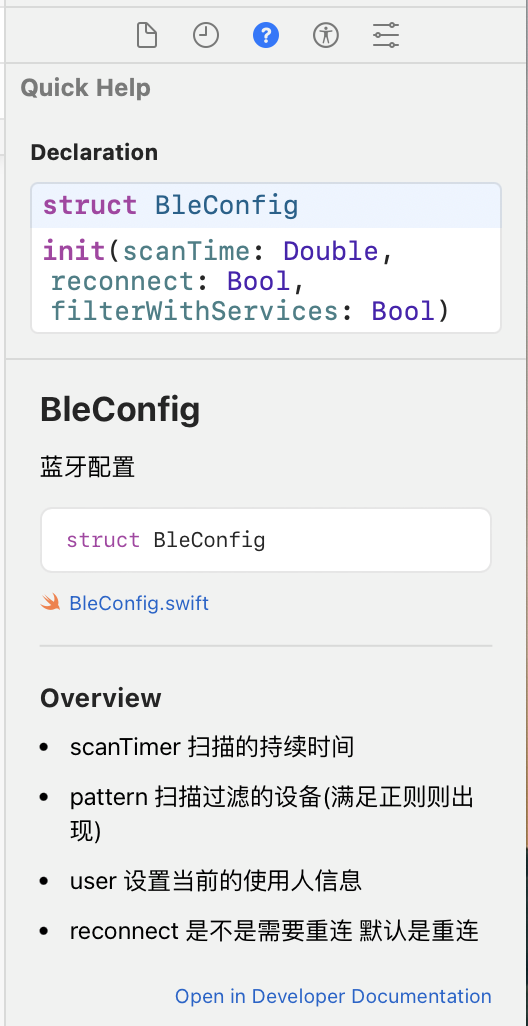
as well as specific explanations for each parameter
Thanks to Swift's excellent exception handling capabilities, you have multiple ways to prevent your program from encountering exceptions in Swift:
// Null Value Check
if value == nil { return }

// Optional Unwrapping
if case let ok = Bool? {}

// guard unwrap
guard let value = T? else { return }


// do Exception Handling
do {
    // Crashes may occur under certain probabilities.
} catch let err {
    // Failure Logic Handling
}
Import Yasee SDK
- pod Mode
# Add the following to your Podfile to integrate it:

pod 'pod_yasee', :git => 'https://gitee.com/YoYoHenryGao/pod_yasee.git', :tag => '0.9.233'


# Use it in the main project
import yasee_ios
- spm Mode
# Use the spm method; please use the spm in xcode; The address is as follows:

https://gitee.com/YoYoHenryGao/spm_yasee.git

# Use it in the main project
import yasee_ios
Initialization Yasee SDK
The initialization operation is a mandatory step. iOS supports one-step initialization, which can be completed in just one step.
The first step to integrate the Yasee SDK is as follows.
// Initialization Yasee | By default, this single step is all you need to complete the initialization!
let _ = Yasee.single

/// Set the auto - pause time for search (in seconds) | Optional, the default is 10 seconds
Yasee.single.bleConfig.scanTime = 5
/// Whether to reconnect (Boolean) | Optional, the default is true
Yasee.single.bleConfig.reconnect = true

/// Set up personnel information
/// Set the current user
/// It is mainly for setting the personnel information related to lung function and body fat
/// User(Integer sex(1-Male,2-Female), Integer age, Integer smoking(1-Smoking,0-No), Integer height(cm), Integer weight(kg))
Yasee.single.currentUser = User(sex: 1, age: 24, smoking: 1, height: 178, weight: 65)
If there is any ambiguity in understanding the model in the example, please refer to the detailed annotation instructions:
Setting the current personnel information mainly serves the purpose of setting personnel information in lung function and body fat tests. It can be ignored if there are no measurements for these two test items.
###Notification-related content All notifications and data interactions related to the Yasee SDK are processed via Notify, including but not limited to (future scenarios):
- Binding and unbinding of devices (
NotifyBleDevice) - The connection and disconnection of devices (
NotifyLink) - Device communication data (
NotifyDeviceData)
First, what we need to understand is the type of notifications. Only by understanding the types of notifications we can better monitor various information notifications from the SDK.
/// Types of notifications
enum NotifyType : String {
    /// Bluetooth status of device
    case bleState
    /// List of searched device
    case searchDevices
    /// List of bound devices
    case bindDevices
    /// Connection status of device
    case deviceLink
    /// Data transmission of device
    case deviceData
}

// Obtain Bluetooth status
let call : NotifyCall<NotifyBleState> = { res in
    // rocess information about Bluetooth status
}
Notify.single.listen(call)


// Obtain peripheral interaction data
let call : NotifyCall<NotifyDeviceData> = { res in
    // Process peripheral interaction data
}
Notify.single.listen(call)


// Obtain peripheral interaction data
let call : NotifyCall<NotifyDeviceData> = { res in
    // rocess peripheral interaction data
}
Notify.single.listen(call)
Bluetooth - related operations
The Bluetooth-related steps are relatively fixed and basically include searching, connecting, and sending information.
// Search for Bluetooth devices
Yasee.single.scan()

// Connect devices
(device as BleDevice).connect();

// Disconnect devices
(device as BleDevice).cancel()

//Obtain the list of detection items supported by the device
let cheks: [Check] = (device as BleDevice).supportChecks

//Obtain the commands supported by the detection item
let cheks: [Cmd] = (check as Check).cmds

// Transmit and receive two-way commands with peripherals
try? device.send(cmd.unsign) // Use Notify notifications for sending and receiving
If there is any ambiguity in understanding the model in the example, please refer to the detailed annotation instructions:
Set the default binding list
The Yasee SDK supports initializing the binding list and performing **automatic connection operations ** based on the initialized device list; first, we need to obtain a [BleDevice] object
The automatic connection function depends on the settings of the initialized device and is controlled by the reconnect field in BleConfig. If automatic connection needs to be set, this property must be configured; by default, automatic connection is not supported!!
The following is device initialization:
/// lds is persistent data
do {
    let jdds = try JSONDecoder().decode([BleDevice].self, from: lds)
    dds.initDevice(jdds)
} catch let err {
    print("Yasee-SDK: Error: \(err.localizedDescription)")
}


/// Obtain the device management object
let single = Devices.single


/// Set the default device for initialization. This operation allows the device to enter automatic connection mode (provided that automatic connection has been configured)
single.initDevice([BleDevice]);
If there is any ambiguity in understanding the model in the example, please refer to the detailed annotation instructions:
- For details, please click Devices
Integration successful!
If more functional implementations are needed, please refer to iOS Complete API Documentation
Framework download
It is recommended to read this document thoroughly before docking