Demo Display
Scanning Device & Bind the Device

explanation of steps:
1. A list of bound devices is displayed when you open the app2.Click the ·Search· button in the upper right corner to enter the search page
3.Find the device you want to connect to from the searched devices
4. Click the ·Link· button to bind and connect the device
5. List of bound devices There are already bound devices
cache the bound device list
step explanation:
1.What is displayed is the list of bound devices when you open the app2.If devices have been bound before, the cached devices will be displayed first here.

Delete the bound list (including cache)

step explanation:
1. What is displayed is the list of bound devices when you open the app2.If devices have been bound before, the cached devices will be displayed first here
3.If you want to delete the bound list, you can swipe left to remove it
interface with peripherals
step explanation:
1. What is displayed is the list of bound devices when you open the app2.Click the peripheral device you want to interact with, and you will enter the device details page; here, the detailed information of the interaction can be displayed
3.The detection item menu at the bottom shows the detection items supported by this device,
4. Long-pressing a detection item at the bottom will bring up interaction commands
5. Electrode commands allow for device interaction

Sent and received command content
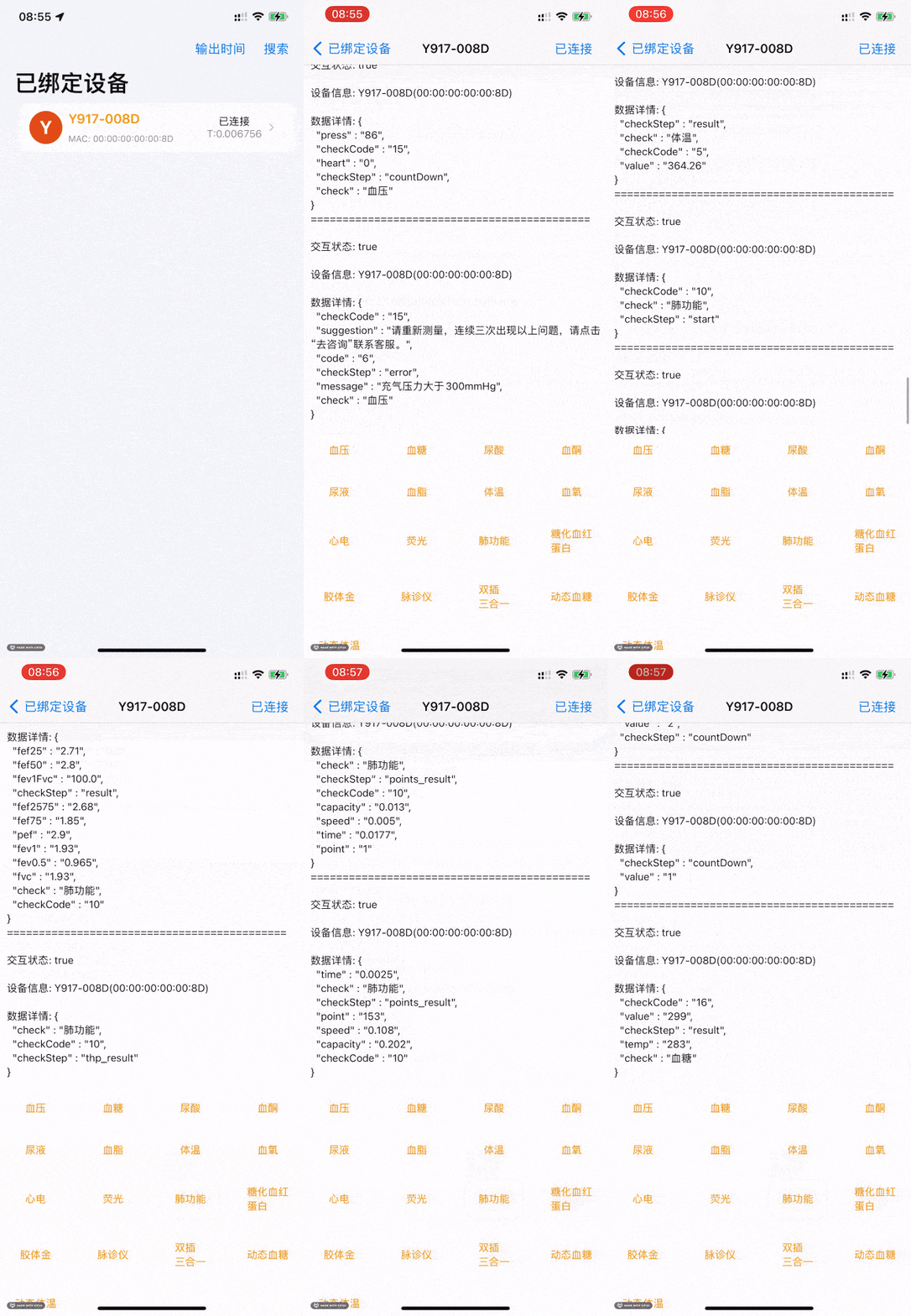
step explanation:
1. Enter the binding list to view the connected devices2.Click on the peripheral device you wish to interact with, and you will then enter the device details page; here, detailed information about the interaction can be displayed
3.The detection item menu at the bottom corresponds to the detection items supported by this device,
4. Long-pressing a detection item at the bottom will bring up interaction instructions
5. Electrode commands enable device interaction
6. Click the `Start Measurement` command in the blood pressure section to begin
7. The upper part will display content related to the command (in a visual format)
8. Commands are divided into two types: interactive (such as blood pressure, lung function, urine, blood oxygen, etc.) and passive receiving
9. Information from both interactions and passive reception will be displayed in the upper part of the screen